openvela多任务系统开发示例
项目规划
本节将基于多任务系统,创建多个进程:功能相对独立的程序创建为不同的进程。比如音乐播放器、聊天软件,这就应该创建为2个进程。进程里面可以创建多个线程,比如音乐播放器里可以创建出MP3解码线程、声音播放线程、GUI线程。
面向openvela初学者,本章节创建的任务、线程不会很复杂,目的在于掌握进程、线程的划分、创建。由于我们还没学到线程间的通信、互斥、同步,所以使用全局变量进行交互。
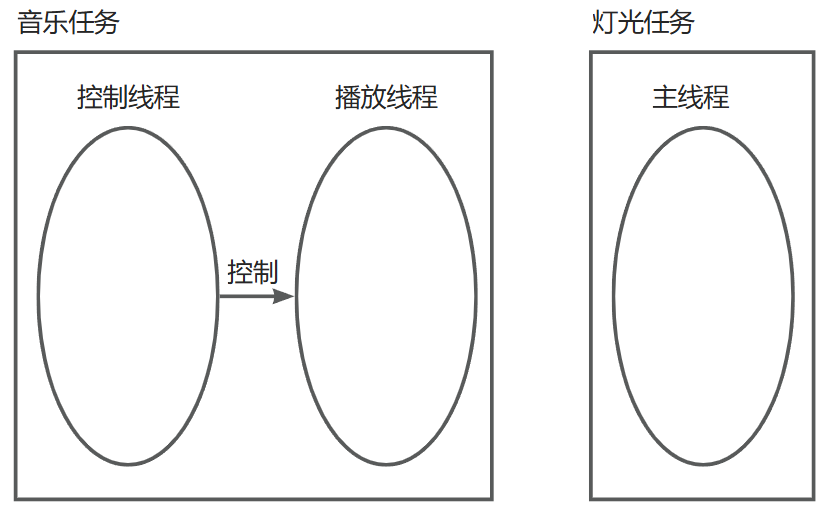
音乐任务功能如下:
-
控制线程:接收用户输入,发送“0~9”的数字给“播放线程”
-
播放线程:根据收到的信息播放“0~9”的声音
灯光任务功能为:根据按键控制LED,按键被按下则点亮LED并维持50 0ms。
本项目涉及2个进程、3个线程,框图如下:
创建音乐任务
本实验的前提:
- 使用RR调度机制:
配置内核,把“CONFIG_RR_INTERVAL”配置为1
- 修改hello_main.c
前面的实验使得控制台无法使用,修改“apps/examples/hello/hello_main.c”,恢复为原来的代码。
- 把“0.wav~9.wav”文件放入单板:
把“3-3-2_体验aplay\数字0-9中文语音wav格式音效\处理过的wav”里面的wav文件放入如下目录后,再执行“m”命令编译、执行“pack”命令打包:
~/vela-opensource/vendor/allwinnertech/lichee/board/common/data/UDISK
体验aplay
配置项:
#不配置 CONFIG_NSH_DISABLE_RPMSG
CONFIG_AUDIO=y
CONFIG_AW_DRIVERS_AUDIO=y
CONFIG_AW_AUDIO_CODEC=y
CONFIG_DRIVERS_SOUND=y
CONFIG_AW_TINY_ALSA_LIB=y
CONFIG_COMPONENTS_AW_TINY_ALSA_LIB=y
CONFIG_RPTUN=y
CONFIG_AW_RPTUN=y
CONFIG_AW_AUDIO_RPMSG_CTRL=y
CONFIG_SND_PLATFORM_SUNXI_CPUDAI=y
CONFIG_COMPONENTS_AW_ALSA_UTILS=y
CONFIG_LIBM=y
DRIVERS_MSGBOX
ND_PLATFORM_SUNXI_DMIC
openvela内嵌有声音相关的应用程序,简单罗列如下:
amixer # 列出声卡的控制项,比如音量
amixer set 6 180 # numid=6, name='DACL digital volume'
# value=180, min=0, max=255
amixer set 7 180 # numid=7, name='DACR digital volume'
# value=180, min=0, max=255
amixer set 15 7 # numid=15, name='HPOUT gain volume'
# value=5, min=0, max=7
aplay /data/moon.wav # 播放声音文件
arecord -d 5 -c 1 /data/1.wav # 录音5秒, 单通道
注意:wav文件头部有多种布局,openvela里aplay使用的是比较精简的布局,如果在板子上无法播放wav文件,需要如下重新制作(关键是“-bitexact”,它用于消除编码过程中可能导致输出差异的不确定性因素):
# ubuntu
ffmpeg -i 0.wav -bitexact -ac 1 -sample_fmt s16 0_2.wav
音乐任务编程
本节源码位于如下目录:
3-3-2B_音乐任务编程\music
我们可以手工执行命令“aplay xxx.wav”来播放声音,想自动化运行就需要编程,有两种方法:
-
修改aplay的代码,添加我们的功能
-
在我们的代码里调用aplay程序
本课程的重点在于openvela本身,我们不打算深入研究aplay的代码,所以我们使用第2种办法。声卡的使用是一个专门的课题,既然有现成的命令给我们使用,可以加快开发效率。
可以使用posix_spawn、task_spawn、task_create三个函数创建进程以调用aplay:
-
aplay命令没有真正的“可执行文件”,这是一个“内嵌的文件”
-
aplay命令所对应函数为“aplay_main”:
aplay.c里有main函数,在编译aplay.c时main被当做宏替换为aplay_main。
- aplay命令的源码位于:
vendor/allwinnertech/chips/r528/drivers/rtos-hal/hal/test/sound/aplay.c
下面使用3种方法创建进程调用aplay。
① 使用task_create,代码如下:
char \* argv\[2\] = {"/data/0.wav", NULL};

if (0 \> task_create("aplay", 100, 2048, aplay_main, argv))

printf("task_create err\n");
else
printf("task_create ok\n");
② 使用task_spawn,代码如下:
char \* argv\[2\] = {"/data/0.wav", NULL};

if (0 \> task_spawn("aplay", aplay_main, NULL, NULL, argv, NULL))

printf("task_spawn err\n");
else
printf("task_spawn ok\n");
③ 使用posix_spawn,代码如下(注意:使用posix_spawn时argv会原原本本传给main函数,而使用前面2种方法时argv传给main函数后变成argv[1]、argv[2]……):
char \* argv\[3\] = {"aplay", "/data/0.wav", NULL};

if (0 != posix_spawn(&pid, "aplay", NULL, NULL, argv, NULL))

printf("posix_spawn err\n");
else
printf("posix_spawn ok\n");
上机实验
把一个APP加入openvela里,参考文档:<https://doc.openvela.com/document?id=733&version=dev&language=cn>
第1步:把“3-3-2C_音乐任务上机实验\music”放到Ubuntu的“/home/ubuntu/vela-opensource/apps/examples”目录下:
$ ls /home/ubuntu/vela-opensource/apps/examples/music/
CMakeLists.txt Kconfig Make.defs Makefile music.c
第2步:清除工程,执行如下命令:
cd ~/vela-opensource

./build.sh vendor/allwinnertech/boards/r528/r528s3-velaevb1/configs/nsh/ distclean
第3步:配置工程,假设music,执行如下命令:
cd ~/vela-opensource

./build.sh vendor/allwinnertech/boards/r528/r528s3-velaevb1/configs/nsh/ menuconfig
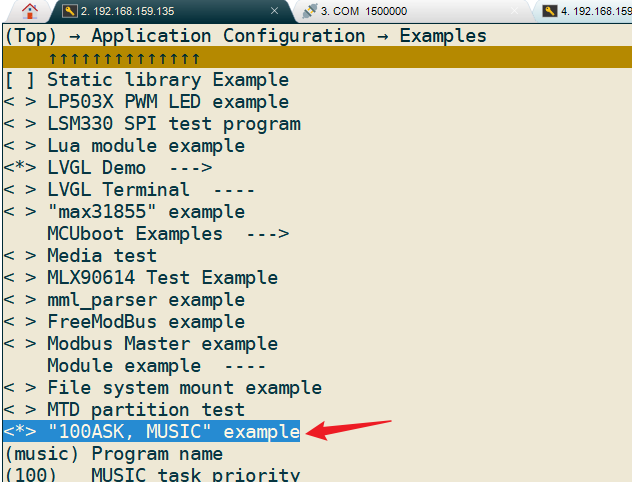
第4步:编译、打包、烧写:
cd ~/vela-opensource/vendor/allwinnertech/lichee

m

pack
第5步:测试,在串口上执行如下命令
amixer set 6 180
amixer set 7 180
amixer set 15 7
music
然后输入数字并回车,可以听到对应声音,操作记录如下:
nsh> amixer set 6 180
[70/01/ 1 08:00:17] [CPU0] [36] [nsh] numid=6, name='DACL digital volume'
[70/01/ 1 08:00:17] [CPU0] [36] [nsh] value=180, min=0, max=255
nsh> amixer set 7 180
[70/01/ 1 08:00:17] [CPU0] [46] [nsh] numid=7, name='DACR digital volume'
[70/01/ 1 08:00:17] [CPU0] [46] [nsh] value=180, min=0, max=255
nsh> amixer set 15 7
[70/01/ 1 08:00:17] [CPU0] [47] [nsh] numid=15, name='HPOUT gain volume'
[70/01/ 1 08:00:17] [CPU0] [47] [nsh] value=7, min=0, max=7
nsh>
nsh> music
0
[70/01/ 1 08:00:22] [CPU0] [63] [nsh] riffType: RIFF
[70/01/ 1 08:00:22] [CPU0] [63] [nsh] waveType: WAVE
[70/01/ 1 08:00:22] [CPU0] [63] [nsh] channels: 1
[70/01/ 1 08:00:22] [CPU0] [63] [nsh] rate: 8000
[70/01/ 1 08:00:22] [CPU0] [63] [nsh] bits: 16
[70/01/ 1 08:00:22] [CPU0] [63] [nsh] align: 2
[70/01/ 1 08:00:22] [CPU0] [63] [nsh] data size: 10658
[70/01/ 1 08:00:22] [CPU0] [63] [nsh] dump args:
[70/01/ 1 08:00:22] [CPU0] [63] [nsh] card: default
[70/01/ 1 08:00:22] [CPU0] [63] [nsh] format: 2
[70/01/ 1 08:00:22] [CPU0] [63] [nsh] rate: 8000
[70/01/ 1 08:00:22] [CPU0] [63] [nsh] channels: 1
[70/01/ 1 08:00:22] [CPU0] [63] [nsh] period_size: 1024
[70/01/ 1 08:00:22] [CPU0] [63] [nsh] buffer_size: 4096
[70/01/ 1 08:00:22] [CPU0] [63] [nsh] mutex:0x41fbcd20
[70/01/ 1 08:00:22] [CPU0] [63] [nsh] prepare:0x41418a15
[70/01/ 1 08:00:22] [CPU0] [63] [nsh] mutex:0x41fbcd20
[70/01/ 1 08:00:22] [CPU0] [63] [nsh] mutex:0x41fbcd20
[70/01/ 1 08:00:23] [CPU0] [63] [nsh] 363, snd_vela_pcm_close
[70/01/ 1 08:00:23] [CPU0] [63] [nsh] mutex:0x41fbcd20
[70/01/ 1 08:00:23] [CPU0] [63] [nsh] mutex_destroy:0x41fbcd20
创建LED任务
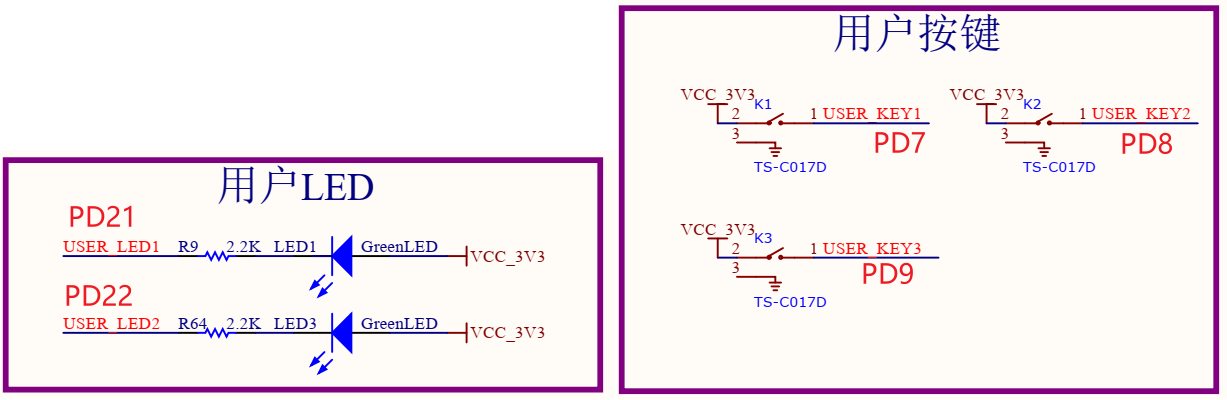
硬件原理图
openvela的GPIO驱动简单修改
参考代码:apps/examples/gpio/gpio_main.c
openvela系统里有各类GPIO设备节点,如下:
# ls /dev/gpio*
它们对应哪个GPIO?这由驱动程序决定,驱动代码在如下文件里:
vendor/allwinnertech/chips/r528/drv/gpio/drv_gpio.c
对应关系如下图所示:
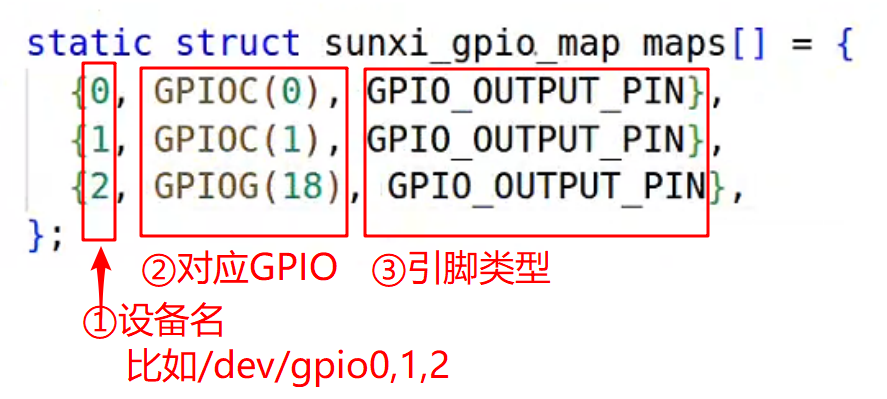
如果你要操作的引脚不在上图所示maps数组里,可以修改它。
openvela的GPIO API接口
参考代码:apps/examples/gpio/gpio_main.c
APP如何操作GPIO?接口函数为open/ioctl。
首先使用open函数打开设备节点:
#include <sys/types.h>
#include <sys/stat.h>
#include <fcntl.h>
int open(const char \*pathname, int flags);

int open(const char \*pathname, int flags, mode_t mode);
然后使用ioctl获取、设置引脚方向,它的参数个数是可变的,如下:
#include <sys/ioctl.h>
#include <nuttx/ioexpander/gpio.h>
int ioctl (int fd, int cmd, ...);
比如获得gpio引脚类型:
enum gpio_pintype_e pintype;

int ret;
/* Command: GPIOC_PINTYPE
* Description: Return the GPIO pin type.
* Argument: A pointer to an instance of type enum gpio_pintype_e
*/
ret = ioctl(fd, GPIOC_PINTYPE, (unsigned long)((uintptr_t)&pintype));

if (ret == -1)
/* error */
设置gpio的引脚类型:
enum gpio_pintype_e newpintype = GPIO_OUTPUT_PIN;

int ret;
/* Command: GPIOC_SETPINTYPE
* Description: Set the GPIO pin type.
* Argument: The enum gpio_pintype_e type.
*/
ret = ioctl(fd, GPIOC_SETPINTYPE, (unsigned long) newpintype);

if (ret == -1)
/* error */
最后,可以读、写引脚。
写gpio引脚让它输出高低电平:
bool outvalue = true;

int ret;
/* Command: GPIOC_WRITE
* Description: Set the value of an output GPIO
* Argument: flase=output a low value; true=output a high value
*/
ret = ioctl(fd, GPIOC_WRITE, (unsigned long)outvalue);

if (ret == -1)
/* error */
读gpio引脚获得引脚电平:
bool invalue;

int ret;
/* Command: GPIOC_READ
* Description: Read the value of an input or output GPIO
* Argument: A pointer to an bool value to receive the result:
* false=low value; true=high value.
*/
ret = ioctl(fd, GPIOC_READ, (unsigned long)((uintptr_t)&invalue));

if (ret == -1)
/* error */
修改驱动
修改“vendor/allwinnertech/chips/r528/drv/gpio/drv_gpio.c”,代码如下:
static struct sunxi_gpio_map maps\[\] = {
#if 0
{0, GPIOC(0), GPIO_OUTPUT_PIN},

{1, GPIOC(1), GPIO_OUTPUT_PIN},

{2, GPIOG(18), GPIO_OUTPUT_PIN},
#else
{0, GPIOD(21), GPIO_OUTPUT_PIN}, /\* LED1 \*/

{1, GPIOD(7), GPIO_INPUT_PIN_PULLDOWN}, /\* KEY1 \*/
#endif
};
编写APP
实验源码为:
3-3-3_创建LED任务\led
源码如下:
01 #include <nuttx/config.h>
02
03 #include <sys/ioctl.h>
04 #include <stdbool.h>
05 #include <stdlib.h>
06 #include <stdio.h>
07 #include <string.h>
08 #include <fcntl.h>
09 #include <signal.h>
10 #include <errno.h>
11 #include <unistd.h>
12
13 #include <nuttx/ioexpander/gpio.h>
14
 int main(int argc, char \*\*argv)

 {

 int fd_led, fd_button;

 int ret;
19
 fd_led = open("/dev/gpio0", O_RDWR);

 if (fd_led \< 0)

 {

 printf("Error opening LED GPIO device\n");

 return -1;
25
}
27
28
 fd_button = open("/dev/gpio1", O_RDWR);

 if (fd_button \< 0)

 {

 printf("Error opening Button GPIO device\n");

 return -1;

 }
35
 ret = ioctl(fd_led, GPIOC_SETPINTYPE, GPIO_OUTPUT_PIN);

 if (ret \< 0)

 {

 printf("Error setting LED GPIO pin type\n");

 return -1;

 }
42
 ret = ioctl(fd_button, GPIOC_SETPINTYPE, GPIO_INPUT_PIN_PULLDOWN);

 if (ret \< 0)

 {

 printf("Error setting Button GPIO pin type\n");

 return -1;

 }
49
 while (1)

 {

 bool invalue;

 ret = ioctl(fd_button, GPIOC_READ, (unsigned long)((uintptr_t)&invalue));

 if (ret \< 0)

 {

 printf("Error reading Button GPIO pin\n");

 return -1;

 }
59
 if (ret == 0 && invalue == 1)

 {

 ret = ioctl(fd_led, GPIOC_WRITE, 0);

 sleep(1);

 ret = ioctl(fd_led, GPIOC_WRITE, 1);

 }

 }
67
 return 0;

 }
上机实验
实验源码为:
3-3-3_创建LED任务\led
把一个APP加入openvela里,参考文档:<u>https://doc.openvela.com/document?id=733&version=dev&language=cn</u>
第1步:把“3-3-3_创建LED任务\led”放到Ubuntu的“/home/ubuntu/vela-opensource/apps/examples”目录下:
$ ls /home/ubuntu/vela-opensource/apps/examples/led/
CMakeLists.txt Kconfig Make.defs Makefile led.c
第2步:修改“~/vela-opensource/apps/examples/Kconfig”,在后面加入:
source "/home/ubuntu/vela-opensource/apps/examples/zerocross/Kconfig"

source "/home/ubuntu/vela-opensource/apps/examples/led/Kconfig"
endmenu # Examples
第3步:清除工程,执行如下命令:
m c
第4步:配置工程,把LED加入工程,执行如下命令:
m menuconfig
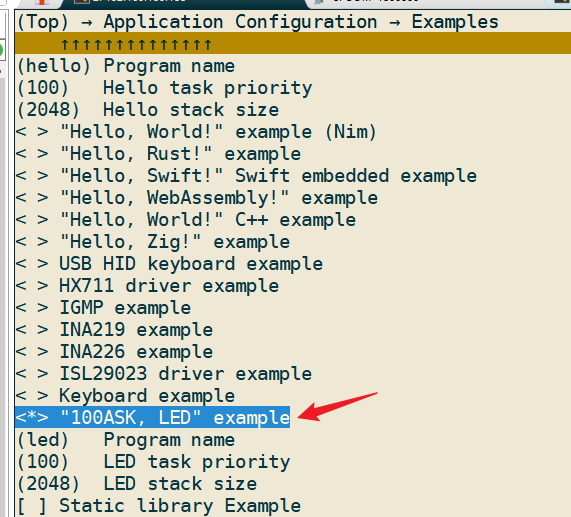
第5步:编译、打包、烧写:
cd ~/vela-opensource/vendor/allwinnertech/lichee

m

pack
第6步:测试,在串口上执行如下命令
led
然后按下按键,可以看到LED亮1秒。